VIP
🐸 Introduced in Frogge v0.4
The VIP module manages paid membership tiers, their perks, and who currently holds them: assigning
a member grants the tier's Discord role and (optionally) DMs them a welcome message; removing it
revokes the role. Membership can expire automatically, and members can check their own status any
time with /vip-status.
Quick Start
- Run /admin menu → . Everything lives on this one screen: a VIP Tiers list and a VIP Members list, each with its own Add/Modify/Remove.
- Under VIP Tiers, click , then pick the Discord role this tier should grant. Set its name and cost from the detail screen that opens.
- Under VIP Members, click , pick the member, pick their tier, and set how many days until it expires (leave it blank for a lifetime membership).
VIP's Dashboard section opens on an Overview page (quick stats: tier count, active member count, how many are expiring soon) alongside its Members, Tiers, and Templates tabs.
- Open VIP → Tiers, type a name, pick the Discord role it should grant, then + Add Tier.
- Open VIP → Members → + Assign VIP, search for the member by name, pick the tier, and set an expiry (blank = lifetime).
Full reference
Tiers & perks
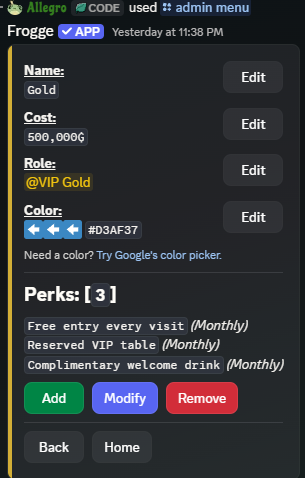
VIP Tiers, on the VIP home screen, lists every tier with its cost, plus / / . A tier's detail screen shows Name, Cost (in Gil), Role (the Discord role it grants), and Color, each independently editable.
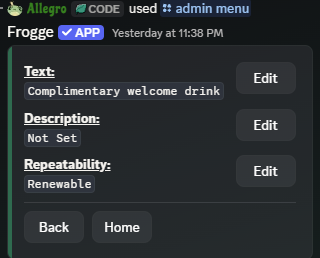
Perks live inside a tier's detail screen, not as their own top-level menu. Each perk has
Text, an optional Description, and a Repeatability (Monthly, Renewable, or
One Time): same /
/ pattern.
 →
→ 
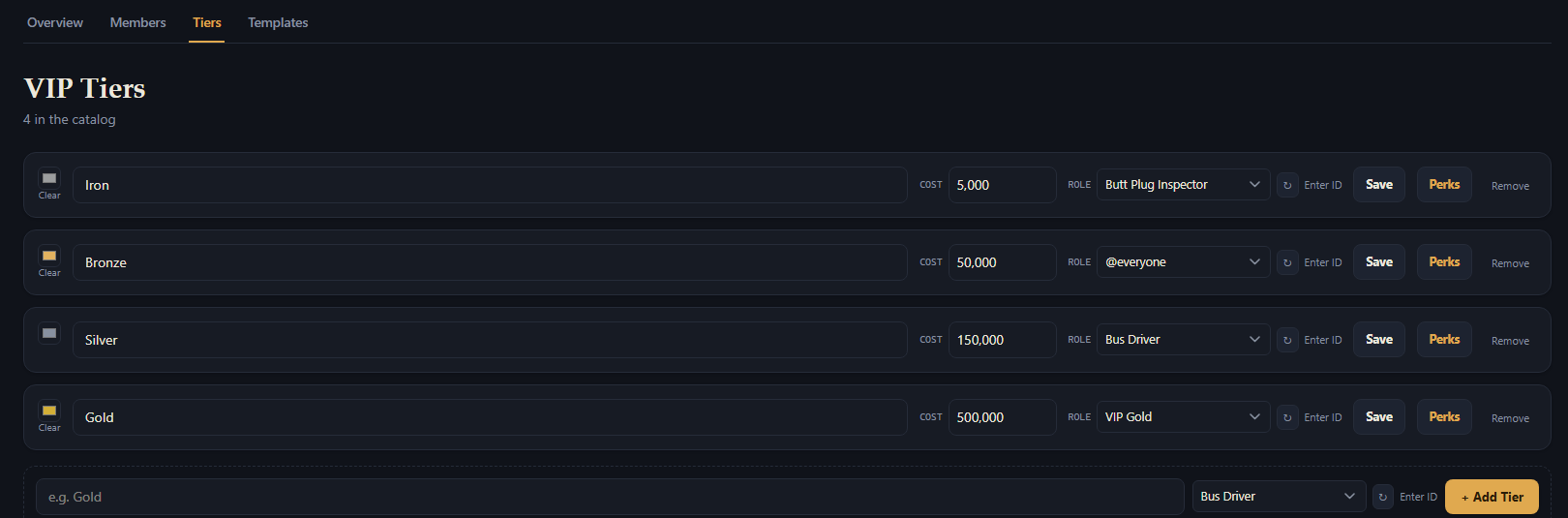
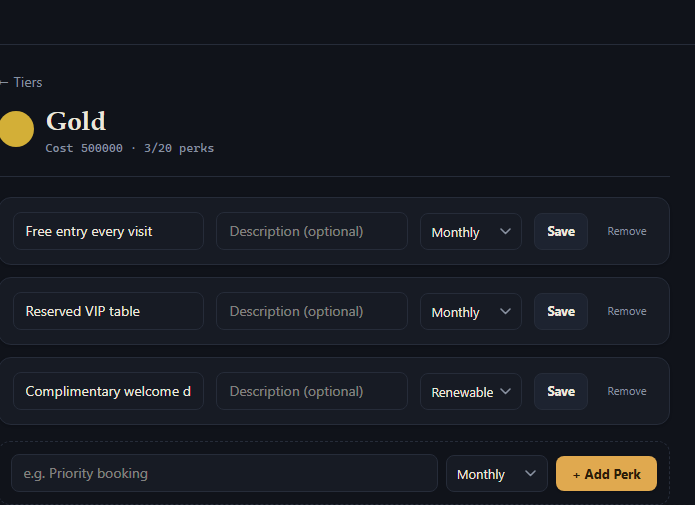
VIP → Tiers shows every tier as an editable row (color swatch, name, cost, and a Discord role picker, the same searchable dropdown-with-an-Enter-ID-fallback used throughout the Dashboard). Each tier's Perks button opens its perk list, capped at 20 perks per tier, editable inline with the same fields as Discord (text, description, repeatability).
 →
→ 
Members & redemptions
VIP Members, also on the VIP home screen, lists current members and their tiers, with
(assign) / /
, plus a separate
button (its screens are still headed
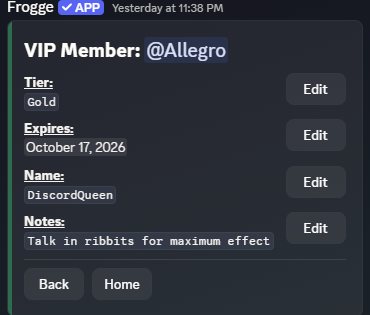
"Manage Perks" internally). A member's detail screen (via Modify) shows Tier,
Expires, Name, and Notes; changing Tier swaps their Discord role automatically.
is a bulk action: pick a member, pick
every perk to update, then pick the redemption level (Not Redeemed / Partially Redeemed /
Fully Redeemed) to apply to all of them at once.
There's currently no way to view a member's full membership history from the admin side in
Discord: only through their own /vip-status (see below).
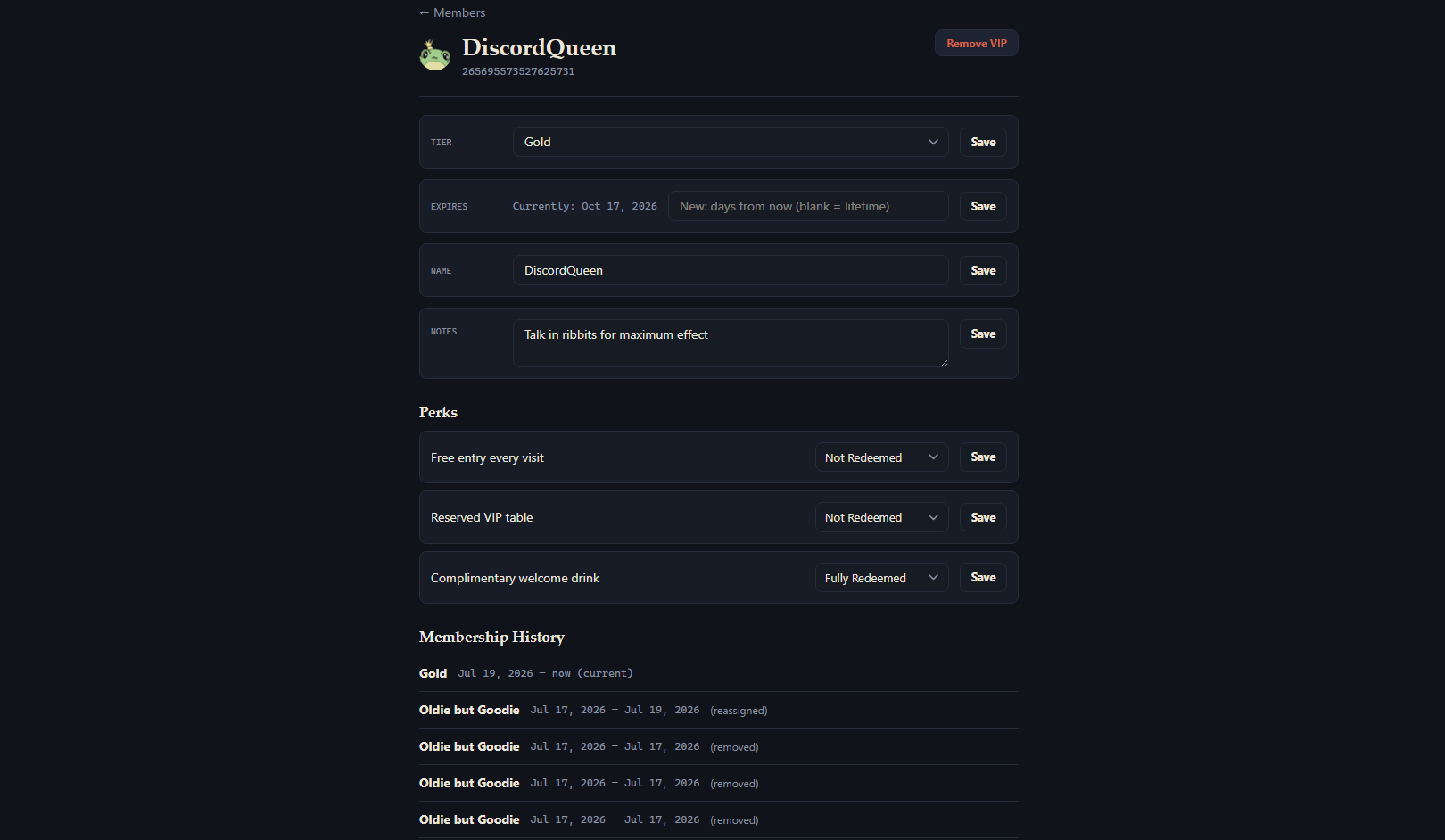
VIP → Members lists everyone with their tier and expiry; clicking a member opens one page
with everything at once: editable Tier/Expires/Name/Notes, and a per-perk redemption
dropdown for each perk individually, and their full membership history (each past period
labeled with how it ended, e.g. reassigned/removed). This is more than the Discord admin
side currently exposes in one place.
 →
→ 
Assigning a new member (+ Assign VIP) uses a live search-by-name field, not a raw Discord user ID.
Posted displays & message templates
Two secondary actions live as buttons right on the VIP home screen, not under Settings:
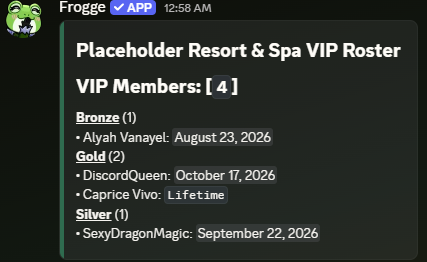
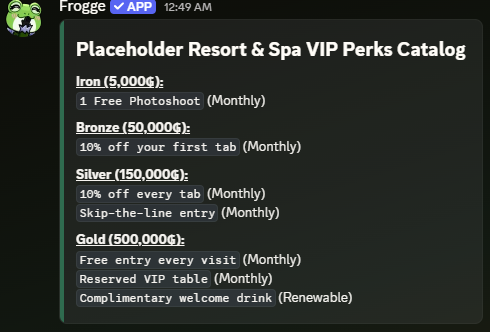
- / : pick a channel to post a live-updating roster or perks-catalog message that refreshes automatically as tiers/members/perks change.
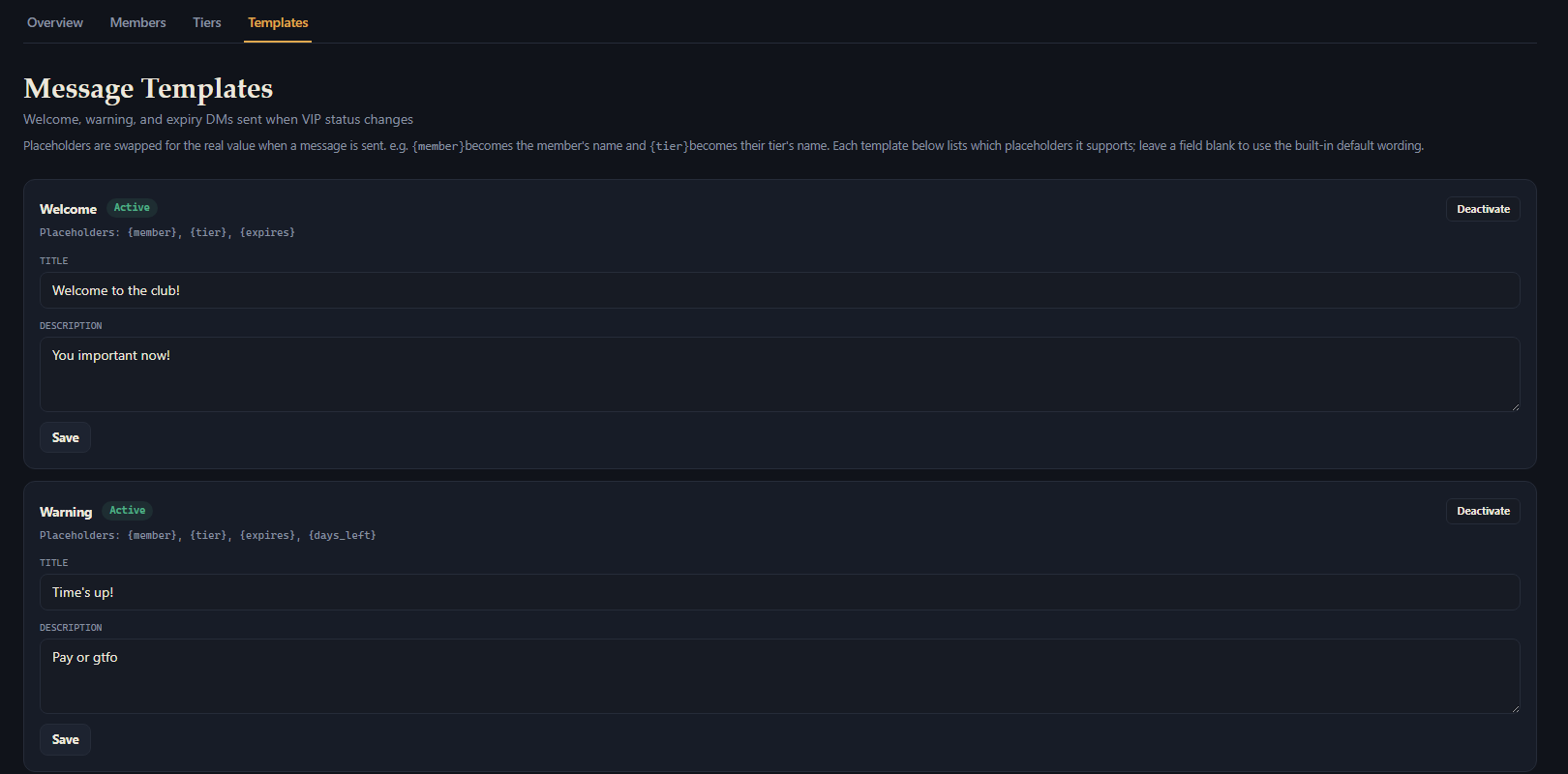
- : Welcome, Warning, and
Expiry DM templates, each with an editable title/description (blank = use the default
wording) and an active/inactive toggle. Placeholders like
{member},{tier},{expires}, and (Warning only){days_left}get filled in automatically.
VIP → Templates covers the same Welcome/Warning/Expiry message editing as Discord's Message Templates. The posted live-updating roster/perks displays aren't available on the Dashboard yet. Manage those from Discord.
Settings
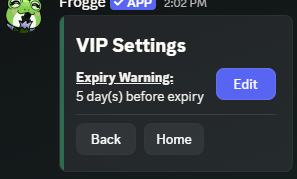
A button right on the VIP menu itself. Just one setting: Expiry Warning, how many days before expiry to warn a member (1–10, or disabled).
The expiry warning threshold lives on the venue's Settings page, as a plain VIP Warning Threshold (days) number field alongside timezone, log channel, and accent color.
Checking your own status
Any member can run /vip-status to open My Status (current tier and expiry),
My History (every past membership period, including how and when it ended), and
My Perks (redemption status for each perk their current tier includes). This is
Discord-only: there's no member-facing equivalent on the Dashboard, which is an admin tool.