Positions
🐸 Introduced in Frogge v0.2
Positions are the staff roles your venue uses: bartender, host, dancer, whatever fits. They're a simple catalog: a name, an optional color, and an optional Discord role. Positions don't do anything on their own, but Events shifts are always created for a specific position, and Staffing qualifications and role grants key off a position's linked Discord role, so it's worth setting your catalog up before you build your first event or hire staff.
Quick Start
- Run /admin menu and pick .
- Click . A new position is created immediately, named "New Position" (or "New Position 2" if that name's taken), and its detail screen opens.
- Click next to Name to rename it, and next to Color to give it a hex color (optional, leave it blank for none).
 →
→ 
- Open the Positions page for your venue.
- Type a name in the box at the bottom and click + Add Position.
- On the new row, pick a color with the swatch, a role from the dropdown, and adjust the name, then click Save.
Full reference
Positions home
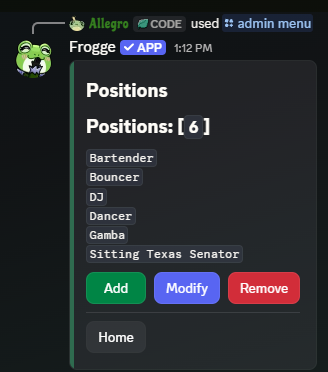
/admin menu → shows every position currently in your catalog, plus three buttons:
- : creates a new position (see Quick Start above) and immediately opens it for editing.
- : opens a dropdown of existing positions; picking one opens its detail screen.
- : opens a dropdown of existing positions; picking one asks for confirmation, then deletes it. This can't be undone.
Position detail
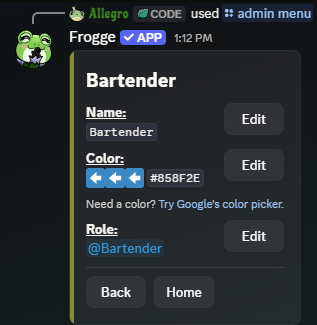
Shows the position's Name, Color (displayed as a hex code, or blank if unset), and
Role (a Discord role, or blank if unset), each with its own
button that opens a small pop-up to change just that
field. Color is entered as a hex code (e.g. #4ABC23) and can be left blank to clear it; Role
is picked from a role select and can be cleared back to none.
Role is what Staffing qualifications and role grants actually key off: a member qualified for a position only gets that Discord role if the position has one linked here. Positions with no Role set still work everywhere else (Events shifts, Staffing qualifications without a role grant); it's optional.
returns to Positions home; returns to the main /admin menu.
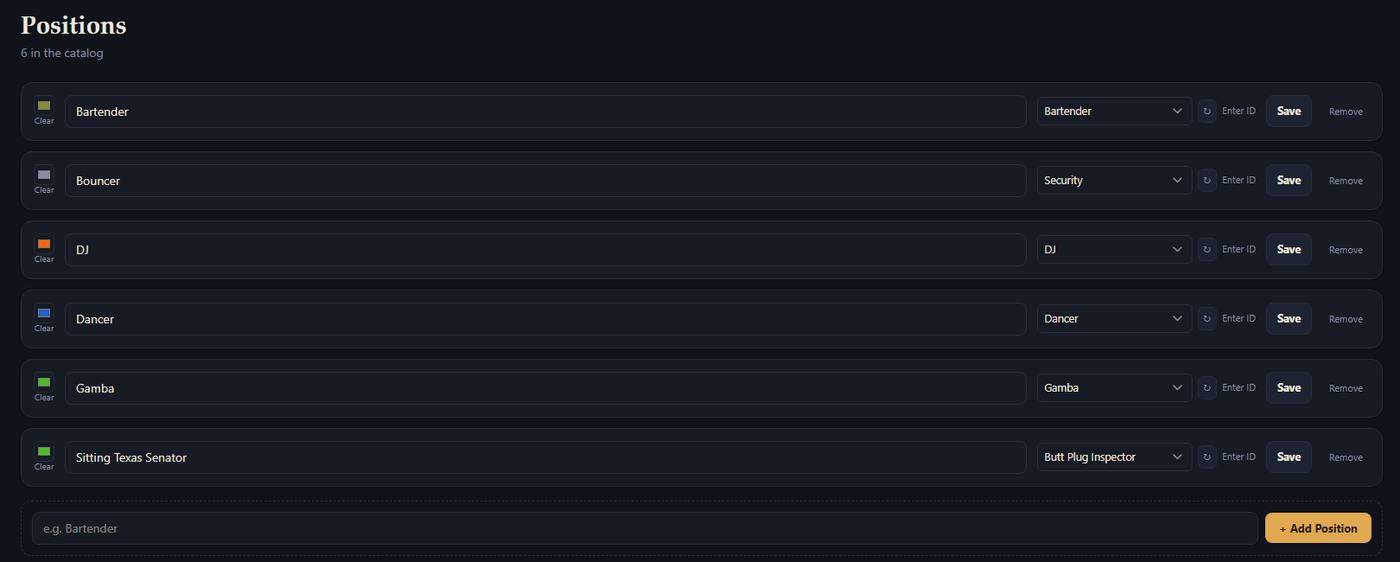
The Positions page shows every position as a row: a color swatch, the name, a Role dropdown, and Save / Remove actions, plus a Clear link under the swatch when a color is set. The Role dropdown lists every Discord role by name; an Enter ID toggle switches it to a plain ID field instead (useful if the role list didn't load, or you'd rather paste an ID directly), with a refresh button to re-fetch the role list. Changes to name, color, or role are edited in place and saved with the row's own Save button. There's no separate detail screen.
Adding a position is a single name field at the bottom of the page; set its color and role afterward from its row.