Events
🐸 Introduced in Frogge v0.2
Events are what you schedule staff for: a party, a grand opening, a recurring weekly night. Each event has one or more Positions attached, each with its own shifts (a time range and a capacity), and staff can sign themselves up. Event Templates let you save a recurring event's whole shape (positions, shifts, and all) and reuse it without rebuilding it from scratch every time.
Quick Start
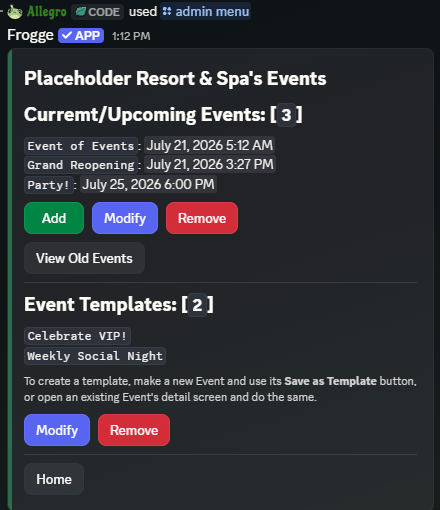
- Run /admin menu → → → , then choose and name it. Set its Start/End Time from the detail screen that opens, and its Description/Image from the next to Appearance.
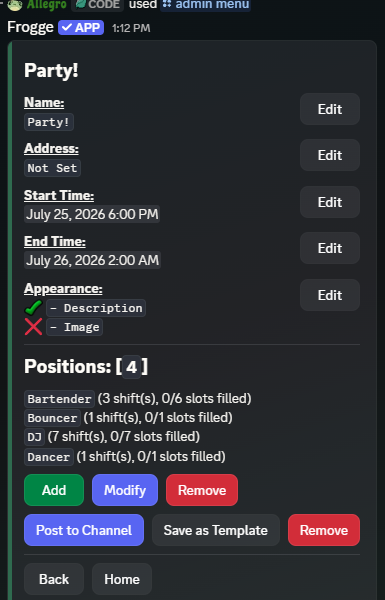
- From that same screen, a Position to the event, then open it and a shift (start/end time and capacity).
- Click and pick a channel: this posts a live-updating announcement staff can sign up from.
 →
→ 
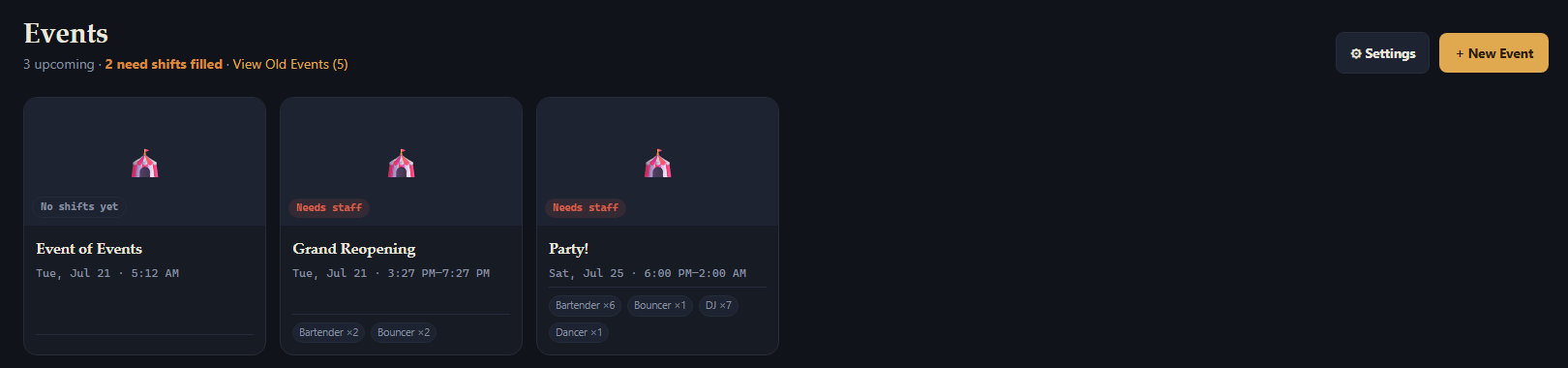
- Open Events → + New Event, fill in name/description/start/end/image, and create it.
- On the event's page, attach a position and add a shift (start, end, capacity) inline.
- Add signups directly by searching for a member: no posting step; the Dashboard shows everything on one page.
 →
→ 
Full reference
This section walks screen by screen: what each button does, exactly. A few genuinely cross-cutting behaviors (the signup lockout, Event Templates) get their own subsections instead, since they touch more than one screen.
Events home
Two independent sections live on this one screen.
Upcoming Events — every event with a start time in the future, capped at 10 shown:
- → the Add Event choice screen (below).
- → pick an event → its detail screen.
- → pick an event → a delete confirmation ("This can't be undone").
- → a read-only, paginated browser of past events, newest-ended-first.
Event Templates — every saved template, by name:
- → pick a template → its detail screen.
- → pick a template → a delete confirmation.
- There's no Add here: a template can only be created from an existing event's Save as Template button (see Event Templates below), never built standalone.
(bottom of the screen) → Events Settings (below).
- + New Event → the New Event form (Name, Description, Starts, Ends, Image).
- Settings (popover) → the Event Signup Lockout preset list only; Require Staffing Qualification has no Dashboard control and stays Discord-only.
- View Old Events (N) → a read-only list of past events.
- Each event card on the list links to that event's own page.
Add Event
Discord-only (the Dashboard's + New Event always creates a blank event).
- → a name modal; creates the event immediately (start time defaults to right now, address pre-fills from your linked FFXIVVenues listing) and opens its detail screen.
- → pick a saved template, then continues straight into the same Create Event from Template flow reached from a template's own detail screen (see Event Templates below).
Event detail
Each field has its own :
- Name → modal, required, up to 100 characters.
- Address → modal, optional, up to 500 characters. Pre-fills from your linked FFXIVVenues listing on a brand-new event; editing or clearing it never overwrites the venue link itself.
- Start Time / End Time → the shared date/time picker (a "Viewing In" timezone override, then Month/Day/Year/Hour/Minute selects).
- Appearance → opens the Appearance sub-screen (below); the value shown here is just a quick ✅/❌ for whether Description and Image are set.
Below the fields, Positions (with shift counts) gets its own Add/Modify/Remove row (see "A position's shifts" below), then a final action row:
- → posts or refreshes the live announcement (see Posting below).
- → a name modal; snapshots this event's current positions/shifts/address into a new template.
- → the 8-field info card (below).
- → a delete confirmation ("This can't be undone").
A past event (reached via View Old Events) opens a read-only variant instead: the same fields with no Edit buttons, no position management, and no Post to Channel. Only Save as Template and Remove still work from there.
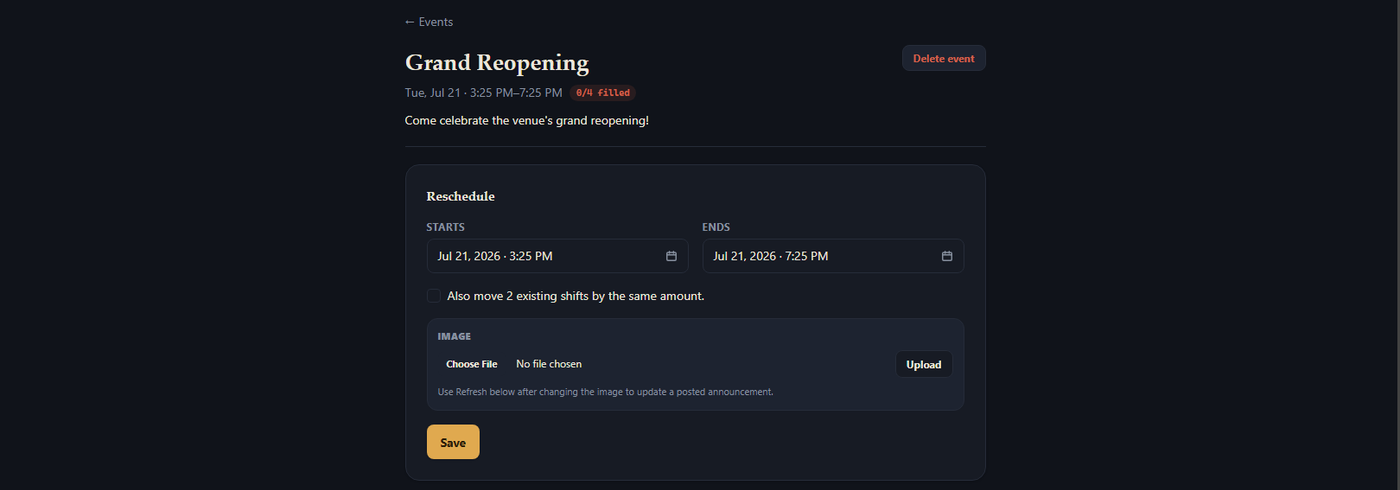
- Reschedule card: Starts/Ends pickers + Save, plus an optional "Also move N existing shift(s) by the same amount" checkbox (only shown if the event has any shifts).
- Image: Upload / Remove, inside the same card but saved independently of Reschedule.
- Save as template (a small popover, not a full page): name it, Save — the same snapshot behavior as Discord's version, except the Dashboard's copy always saves the template's address as empty, since the Dashboard doesn't expose an event's Address field at all yet.
- Delete event: removes it immediately, no confirmation step.
- Name and Description aren't editable from the Dashboard at all yet — Discord-only for now.
Appearance
Discord-only. Split onto its own screen specifically to stay under Discord's 40-component-per- message cap once an event has an image and several positions.
- Description → modal, optional, multiline, up to 2000 characters.
- → modal, either upload an image or paste a URL.
- → removes it (disabled if none is set).
Event Details (the 8-field info card)
The same eight optional free-text fields, on both a live event and a template: Theme, Syncshell, Party Finder, Shout Run, Greeting, Venue Shout, DJ Info, and Miscellaneous. This only shows up as its own button on the posted announcement once at least one of them is actually set.
Its own screen; every field has its own Edit.
One Event Details card with all eight inputs and a single Save Event Details button.
A position's shifts
- → creates a shift immediately (capacity 1, spanning the event's own Start/End Time, or 1 hour from Start if the event has no End Time set), then opens it for editing.
- → pick a shift → its detail screen.
- → pick a shift → a delete confirmation.
Removing a Position from the event (via the Add/Modify/Remove row on Event Detail) deletes its shifts and signups too; you're warned before confirming.
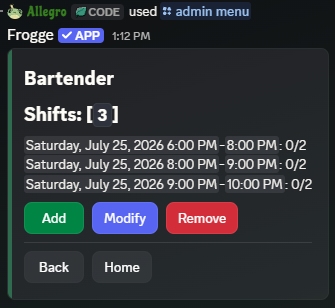 →
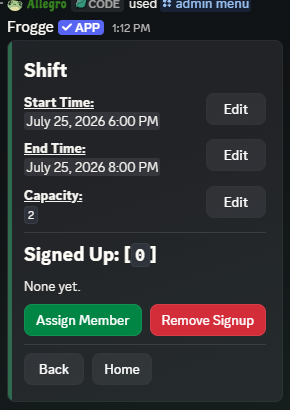
→ 
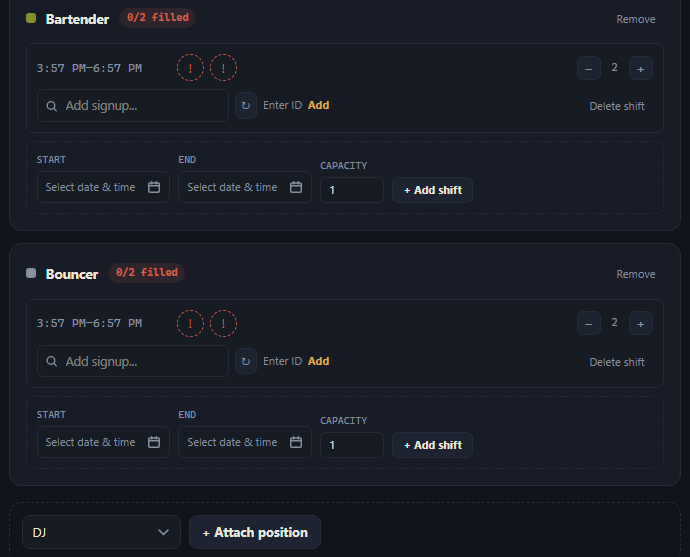
Managed inline on the event's own page, no separate screen:
- −/+ steppers on each shift row adjust Capacity directly.
- A UserPicker + Add next to each shift adds a signup by searching a member (or pasting a Discord ID).
- Clicking a signed-up member's avatar chip removes them.
- + Add shift (dashed box under each position): Start/End pickers + Capacity, adds a shift.
- Delete shift removes one shift row directly.
- Remove at the top of a position's card detaches it from the event.
An open slot within 7 days of its shift starting shows as a red ! instead of a plain dashed circle, so an under-staffed shift is easy to spot at a glance.
Shift detail
Discord-only — the Dashboard manages shifts inline on the event's own page (see above).
- Start Time / End Time → the shared date/time picker. Editing either to fall outside the event's own Start/End window doesn't silently allow or block it: you're asked to confirm first.
- Capacity → modal, capped at your venue's shift-capacity limit.
- → pick a member, signs them up directly. This always bypasses both the signup lockout and the staffing-qualification gate (see below).
- → pick a currently signed-up member, removes them. Same bypass.
Posting & the shift browser
picks a text channel and posts a compact, interactive summary: name, description, start/end times, the address (if set), each position's fill count, and (if your venue has a linked FFXIVVenues listing) a "Hosted by" line. The post's own buttons:
- View Shifts & Sign Up → a private, personal shift browser, paginated 7 shifts at a time, each with a Join/Leave button (or Locked, if the signup lockout applies, or Requires Qualification, if Require Staffing Qualification is on and you don't have one).
- Event Details → the 8-field info card, read-only (only appears once at least one field is set).
The posted summary keeps itself up to date automatically as you edit the event, its address, or its positions/shifts from Discord. You never need to repost it.
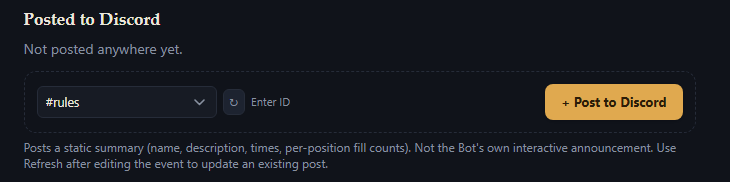
The Posted to Discord section (bottom of an event's page) doesn't post directly — it queues a request that the Bot's own background Worker fulfills, typically within about 2 minutes, using the exact same interactive render Discord's own Post to Channel produces (including the real View Shifts & Sign Up button, not a separate static summary).
- A channel PickerField + + Post to Discord → queues the initial post request.
- While a request is still pending: a notice plus Cancel to withdraw it.
- Once live: View message (a Discord deep link), Refresh, and Remove.
Editing anything on the page (Reschedule, Image, Event Details, positions, shifts, signups) automatically queues a best-effort refresh too, so an existing post usually catches up on its own within a couple of minutes without you touching Refresh at all — Refresh just forces it immediately. Remove deletes the live Discord message directly (not queued) and drops the post record.
Event Templates
A template stores its positions, shifts, and address the same way a live event does, except shift times are stored as offsets (e.g. "+120 minutes from the event's start") rather than fixed dates, so applying the same template on different weeks schedules everyone at the right relative time automatically. The only way to create one is off an existing event (a brand-new blank one works too) — there's no standalone "build a template from scratch" flow, and no Dashboard equivalent for creating, editing, or applying a template at all.
Template detail
- Name → modal, required, up to 100 characters.
- Description → modal, optional, multiline, up to 2000 characters.
- Address → modal, optional, up to 500 characters.
- Image → a plain URL field here (unlike a live event, this isn't an upload+thumbnail widget, and it isn't split onto its own Appearance sub-screen).
- Positions: its own Add/Modify/Remove row, same shape as a live event's.
- → the Apply flow (below).
- → the same 8-field card as a live event.
There's no Remove button on this screen — deleting a template only happens from Events home's Event Templates section.
A template position's shifts
- → creates a shift immediately (+0 to +60 minute offset, capacity 1), then opens it for editing.
- → pick a shift → Start Offset / End Offset (minutes after the event's start; can be negative to start before it) / Capacity.
- → pick a shift → a delete confirmation.
Unlike a live shift, there's no "outside the event's bounds" confirmation here — offsets are unconstrained, since a template has no fixed schedule to bound them against.
Applying a template
- Create Event from Template (from a template's detail screen, or Add Event → From Template) → pick an anchor date/time on the shared date/time picker.
- Confirm: every stored offset resolves to a real timestamp, and the event is created from the template's positions and shifts. A Position the template references that's since been deleted from your catalog is skipped, and you're told which by name, rather than the apply failing or silently dropping it.
- (posts immediately) or (opens the new event's detail screen instead, to review first).
Settings
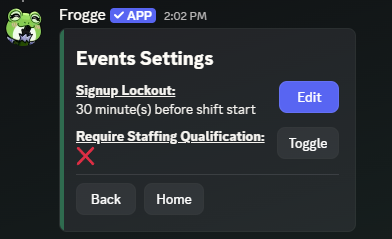
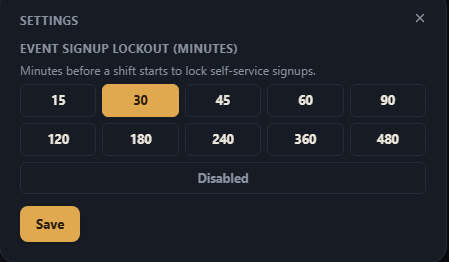
- Signup Lockout → → a preset picker (15 minutes up to 8 hours, or Disabled), not a free-typed number.
- Require Staffing Qualification → , flips it immediately, no confirmation. Off by default.
A Settings popover on the Events list page (not the venue's general Settings page) has Event Signup Lockout (minutes) — the same preset list as Discord — with its own Save. There's no Dashboard control for Require Staffing Qualification; that stays Discord-only.
Signups & the qualification gate
Staff join shifts themselves from the posted announcement's shift browser (above) — there's no Dashboard equivalent of that public join/leave flow, since the Dashboard is an admin tool. Admins can add or remove a signup directly on either surface (Assign Member / Remove Signup in Discord, the inline signup controls in the Dashboard), and admin actions on both surfaces always bypass both gates below.
- Signup Lockout (Settings above): once "now" is within the configured number of minutes of a shift's start, its Join/Leave button shows Locked in the public shift browser. Enforced by the API itself, not just hidden in the UI.
- Require Staffing Qualification (Settings above, off by default): when on, a shift's Position needs at least one qualified staff member before anyone can self-sign-up for it; the button shows Requires Qualification instead. Leaving a shift never retroactively re-gates it, so losing a qualification never traps someone who already signed up.
Related
- Positions: every shift belongs to a position from this catalog; set it up first.