Forms
✨ Introduced in Frogge v1.0
Forms are custom questionnaires: staff applications, event sign-up surveys, feedback forms, whatever your venue needs to collect structured answers for. A venue can have up to 500 Forms, each with up to 100 questions, generous ceilings meant as a sanity backstop, not a real limit you're expected to bump into. Posting and filling one out stay Discord-only, but creating and editing a form, including its questions, is fully available on the Dashboard too.
Quick Start
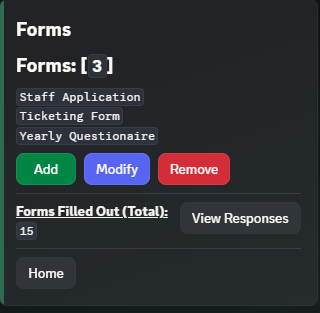
- Run /admin menu → → , and name your form.
- a question, type its prompt, then set its Type and whether it's Required. Repeat for as many questions as you need.
- and pick a channel: members can now click Fill Out to respond.
 →
→ 
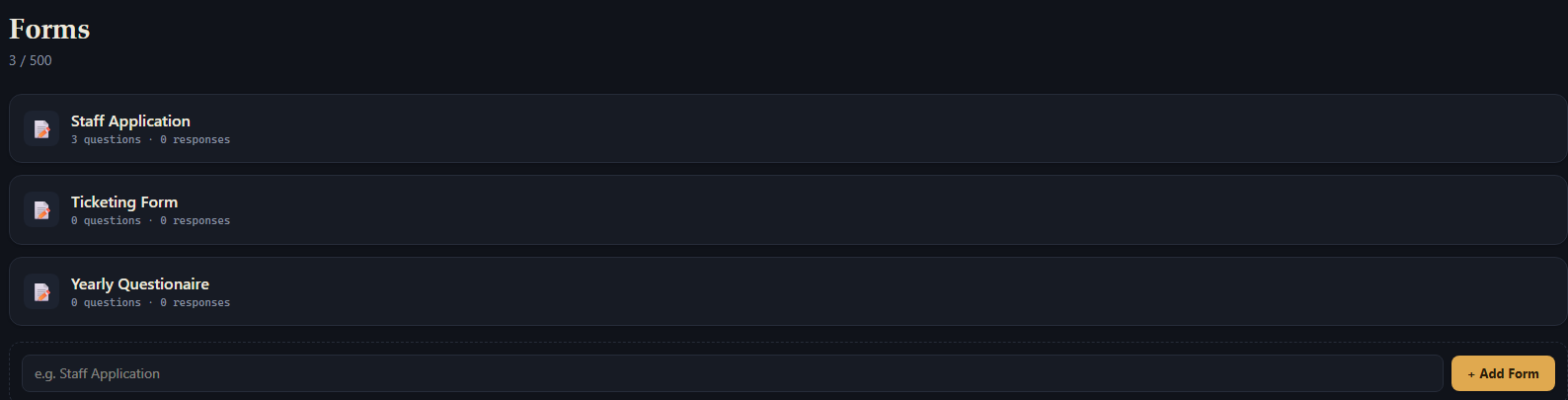
- Open Forms → + Add Form and name it.
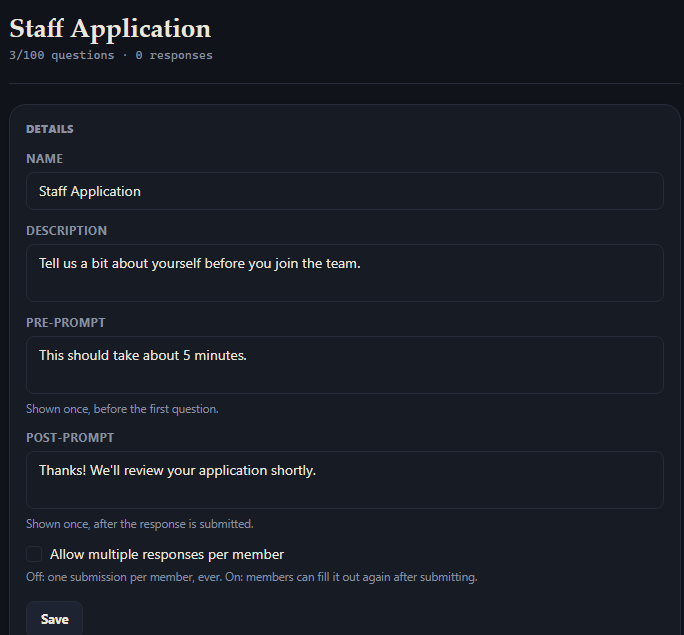
- On the form's own page, fill in its Details and Appearance, and use + Add Question to build out the questionnaire.
- Posting has to happen in Discord. See below.
 →
→ 
Full reference
Creating & editing a form
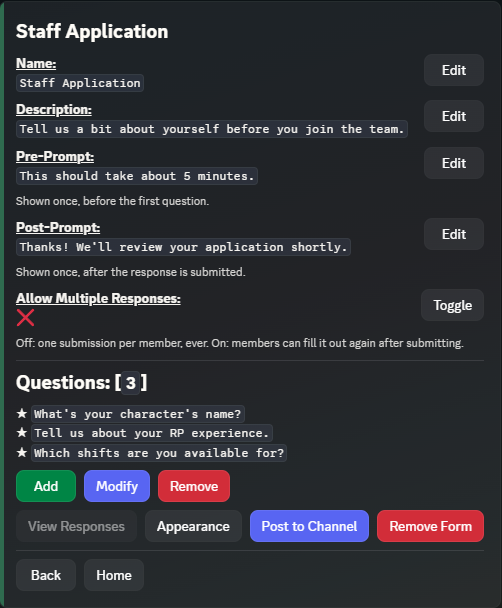
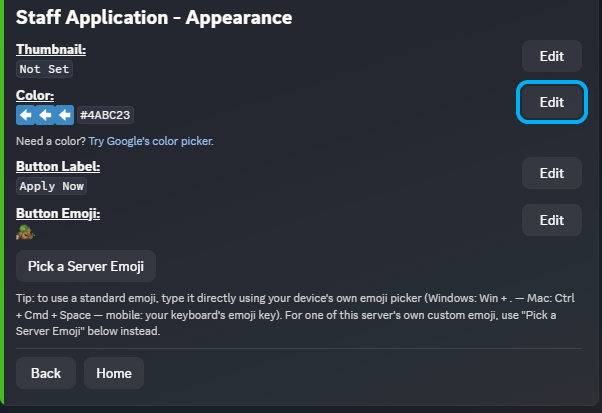
A form's detail screen covers Name, Description, a Pre-Prompt (shown once before the first question) and a Post-Prompt (shown once after submitting), good for instructions or a thank-you message, and an Allow Multiple Responses toggle (off by default: one submission per member, ever). Appearance (Thumbnail, Color, Button Label, Button Emoji) lives on its own sub-screen (this split exists because a 20-question form's detail screen hit Discord's 40-component cap with all of it on one screen).
A Details card covers the same Name, Description, Pre-Prompt, Post-Prompt, and Allow Multiple Responses fields as Discord, saved together with one Save button. A separate Appearance card covers Thumbnail (a real file upload, not a URL), Accent Color (a color picker), Button Label, and Button Emoji, with Clear links for thumbnail/color once set.
Questions
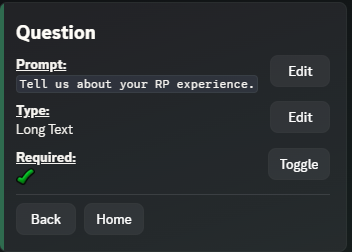
Each question has a Prompt, a Type, and a Required toggle. Type is Short Text, Long Text, Single Select, or Multi Select; the last two get their own Options list, up to 20 choices, managed the same Add/Modify/Remove way as everything else.
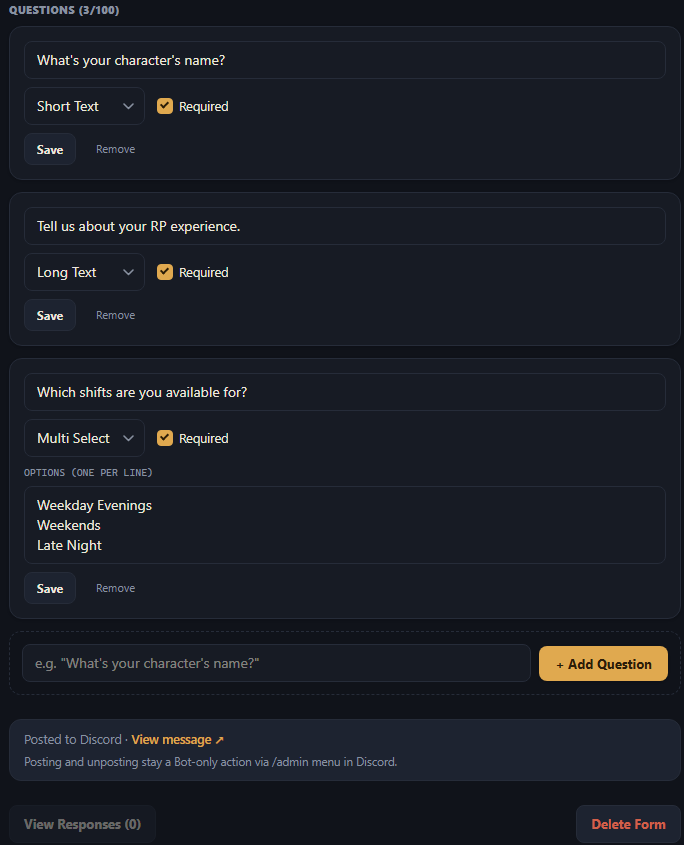
Every question is its own editable row right on the form's page: Prompt, a Type dropdown, a Required checkbox, and (for Single/Multi Select) an Options box, one choice per line. Each row saves independently. + Add Question at the bottom adds a new one by prompt, same as Discord.
Posting
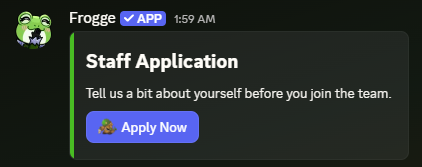
posts a message with the form's name, description, and a button using its custom Button Label/Button Emoji (defaults to "Fill Out"). The post keeps itself current automatically when you edit the form afterward. Posting and unposting stay a Discord-only action: the Dashboard's form page shows a read-only Posted to Discord link to the live message once one exists, but the action itself only lives behind /admin menu.
Filling out a form (member side)
Discord-only: there's no Dashboard equivalent, since filling out a form is a member action, not an admin one. Clicking the posted button opens a private, ephemeral wizard: one question at a time, with ◄ Prev / Next ► to move between them without losing answers already given. Each question has its own Answer button: short/long text questions open a modal, select questions open a picker. Submit stays disabled until every required question has an answer. Starting again while a fill-out is in progress always resumes that same draft rather than starting over; once submitted, clicking Fill Out again either says the form's already been filled out (Allow Multiple Responses off) or starts a fresh draft, keeping the earlier submission on record (on). A Pre-Prompt/Post-Prompt (if set) bookends the whole flow.
Reviewing responses
(disabled until at least one response exists) lists every submission, paginated, with who submitted and when; each one's detail screen shows every question alongside its answer. If your venue has a log channel configured (Settings → General), a short notice posts there each time someone submits.
View Responses on the form's page (also disabled until at least one response exists) lists every submission with the member's avatar/name and submission time; clicking one shows every question alongside its answer, the same information as Discord's response detail screen.
Related
- Standalone: doesn't connect to any other module.