Reaction Roles
✨ Introduced in Frogge v1.0
Reaction Roles posts a panel of buttons where clicking one grants (or removes) a Discord role: pronouns, DC/world, notification opt-ins, whatever your community self-selects.
Quick Start
- Run /admin menu → → , then choose or (six ready-made panels, including Pronouns, Sexual Orientation, DM Preference, Gaming Platform, Data Center, and Zodiac Signs, that create their own roles automatically).
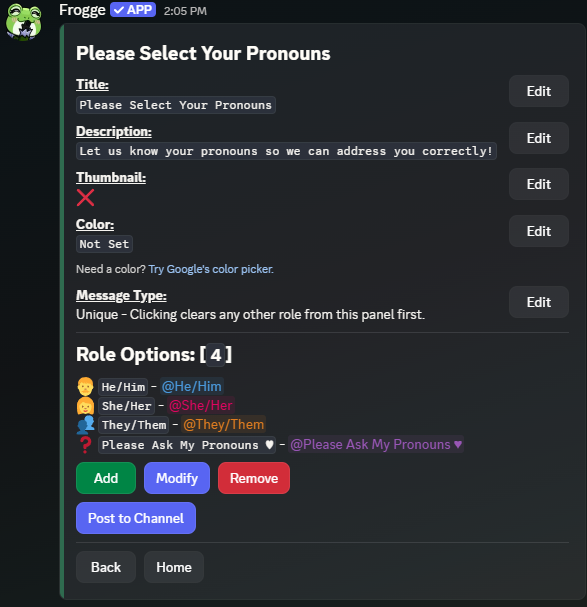
- For a blank panel, add role options: lets the bot make a fresh Discord role on the spot, or to link one you already have.
- and pick a channel: the panel's buttons go live immediately.
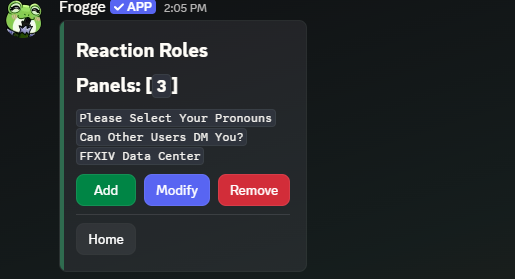 →
→ 
- Open Reaction Roles → + New Panel, give it a title.
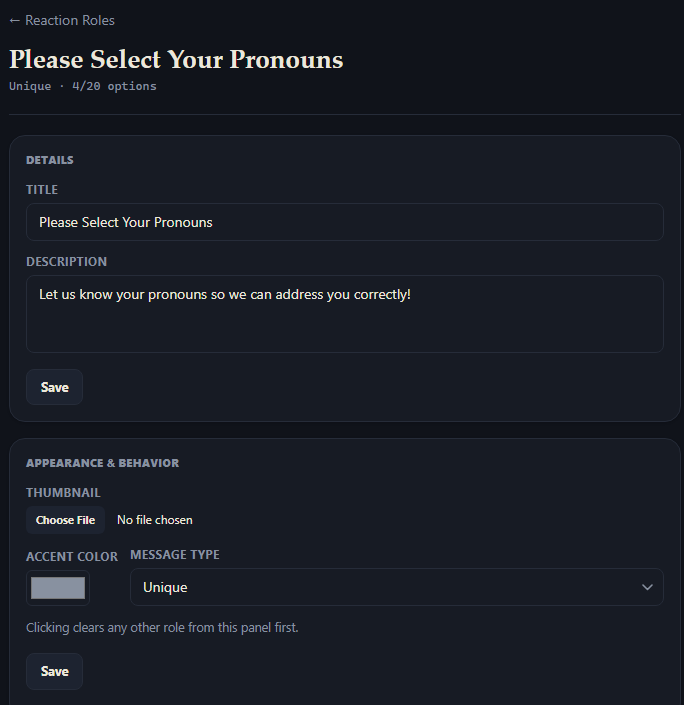
- On the panel's page, edit Details/Appearance, then add options: pick an existing Discord role for each, or use + Create New Role to have the Dashboard make one on the spot.
- Request a post to a channel; the Bot picks it up and posts it within a couple of minutes.
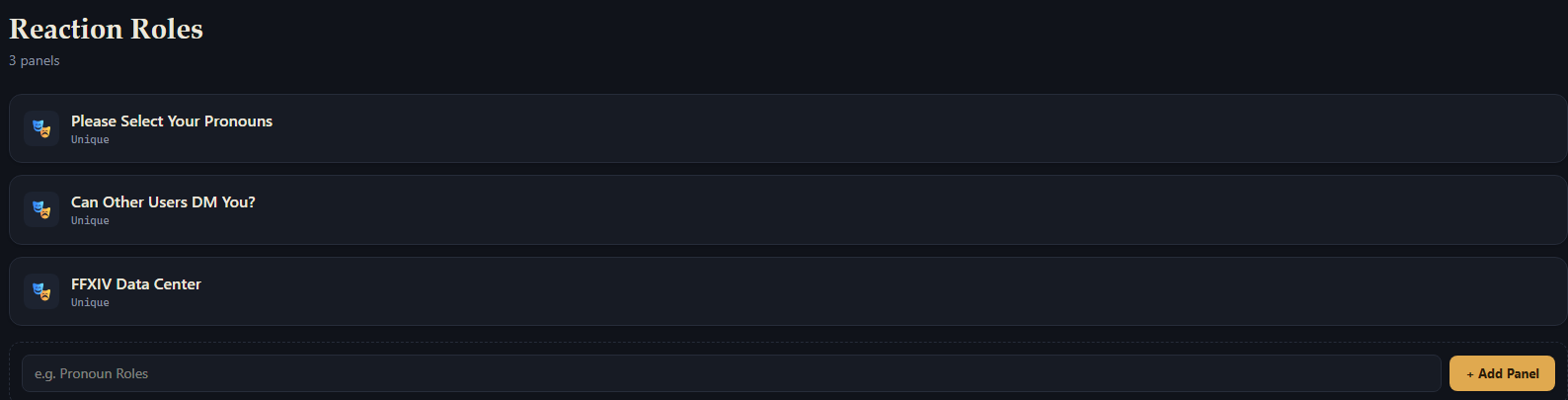 →
→ 
Full reference
Creating & editing a panel
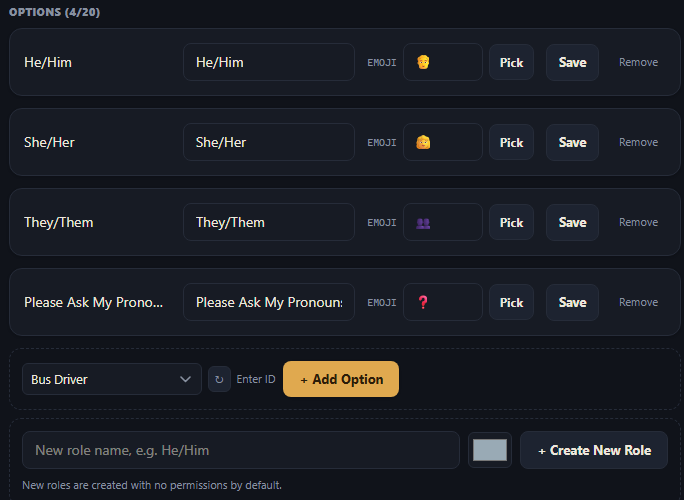
A panel has a Title, optional Description and Thumbnail, a Color, and a Message Type (see below). Up to 20 role options per panel.
offers Blank Panel or From Template (the six bundled templates, see Quick Start above). Every field is editable afterward from the panel's detail screen.
+ New Panel only creates a blank panel; there's no template picker. Once created, its own page covers the same Title/Description/Thumbnail/Color/Message Type fields, split into a Details section and an Appearance section.
Message types
Set per panel, this controls what clicking a button actually does:
- Normal: toggles that one role on or off, independent of any other button on the panel.
- Unique: clicking clears every other role from this panel first, then adds the new one (radio-button behavior, good for pronouns or a single "which world" choice).
- Verify: clicking only ever adds the role; members can't remove it themselves by clicking again. Good for one-way opt-ins an admin should manage removal for.
Role options
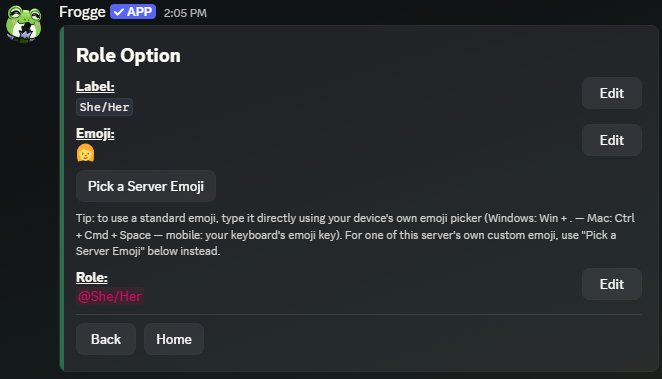
Each button links to one Discord role, with an optional custom Label and Emoji: type a standard emoji directly, or use for one of your server's own custom emoji (there's no way to type a custom emoji's code by hand, so this picker is the only way to use one).
Adding an option offers Create New Role (the bot makes it for you) or Use Existing Role.
Adding an option offers the same choice as Discord: pick an existing Discord role from the dropdown (or paste an ID via Enter ID), or use + Create New Role to have the Dashboard create a fresh Discord role for you, pre-labeled with the new role's own name.
For safety, a role can't be linked (or created) if it has Administrator permission, is managed
by another bot/integration, or is @everyone. Clicking a button should never be able to hand out
real server power.
Posting
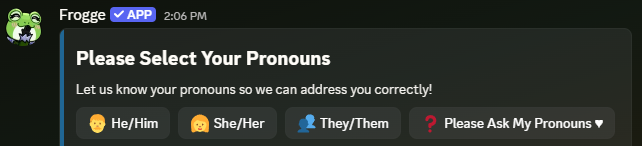
posts the panel's buttons (up to 5 per row) to a channel immediately: you can post the same panel to multiple channels, and every copy stays in sync automatically as you edit the panel or its options.
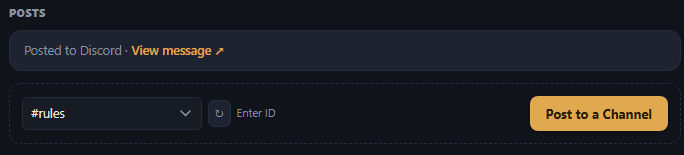
The panel's Posts section requests a post to a channel; the Dashboard itself can't post to Discord directly, so a background sweep on the Bot's side picks up the request and posts it, typically within about 2 minutes. Once live, it's the same auto-syncing post as the Discord side, and either surface can request another one to a different channel or cancel a pending request.
Deleting
Both panel and option removal only ever remove the panel/option from Frogge.
You're also asked what to do with the underlying Discord role(s): Remove [Panel/Option] Only leaves the role(s) in your server, or Also Delete Discord Role(s) removes them too (best-effort: a role that's since become unsafe to touch, been deleted, or that the bot can't manage is skipped and reported, while everything else still gets cleaned up).
Deleting a panel or option never touches the underlying Discord role(s); they stay in your server either way. Delete them yourself in Discord's own role settings if you want them gone too.
Related
- Standalone: doesn't connect to any other module.